Key Takeaways
- Download offline maps before a journey while you still have reliable Wi-Fi and enough battery.
- Save more than the exact route, including arrival areas, detours, stations, fuel stops, and lodging neighborhoods.
- Test airplane mode before leaving so you know what still works without mobile data.
- Offline maps help with navigation, but they may not show live closures, traffic, transit changes, or weather disruption.
- Keep a backup plan with saved addresses, screenshots, charger access, and a simple paper or PDF reference.
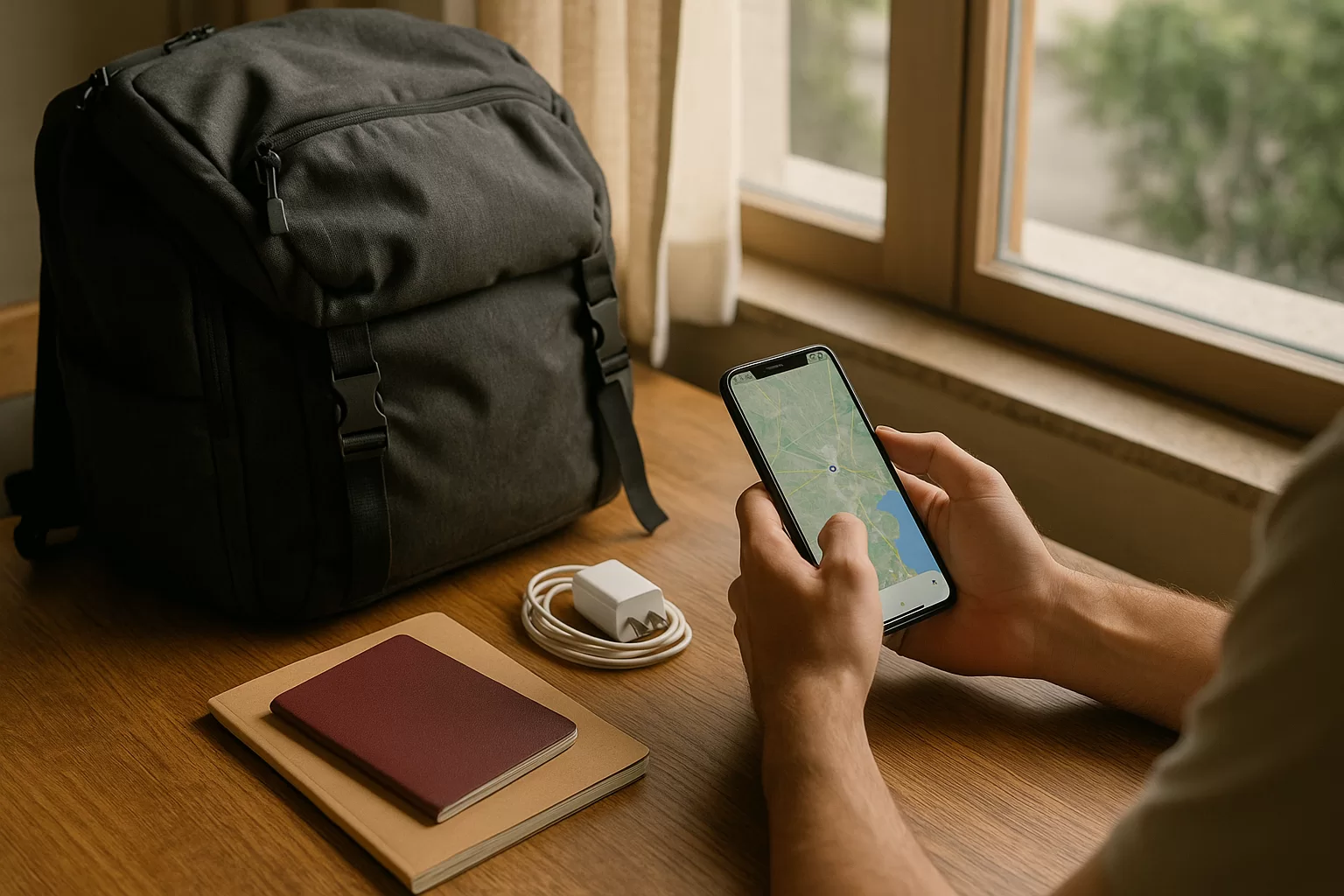
Using offline maps before a journey is one of the easiest travel-tech habits to build, yet it often gets rushed until the airport, train platform, or rental car counter. A good offline setup can save time, reduce roaming costs, and make unfamiliar places feel more manageable when signal drops.
This guide focuses on practical preparation: what to download, how much area to save, when to update maps, what to test, and how to avoid the common mistakes that make offline navigation less useful than expected.
Quick Answer
To use offline maps before a journey, choose a reliable map app, download the full areas you will visit over Wi-Fi, save key places, and test navigation with mobile data turned off. Include your arrival airport or station, accommodation area, main transport routes, day-trip zones, and possible detours. Update downloads shortly before departure, charge your device, and keep written addresses or screenshots as a backup. Offline maps are excellent for orientation and many driving routes, but you should still check current traffic, transit, ferry, road, and weather conditions before you move.
Trip Decision Builder
Choose your trip style, weather, bag size, and priority to get a useful packing and planning direction.
Choose the options above, then build a recommendation you can use with the checklist, table, and sources in this guide.
In This Guide
Choose the Right Offline Maps Before a Journey
The best app depends on how you travel. Drivers usually need turn-by-turn routing and clear rerouting. City visitors need saved places, walking directions, and public transport context. Hikers, cyclists, and rural travellers may need terrain detail and a wider download area than a standard city map provides.
Before you rely on one app, check whether offline navigation is available for your country or region, whether downloaded maps expire, and whether your preferred features work without data. Some apps can display saved streets offline but still need a connection for live transit, traffic, ride-hailing, restaurant hours, or newly changed road layouts.
For road trips
Prioritise voice guidance, lane prompts, fuel-stop visibility, and downloads that include rural roads around your route. Save alternate corridors in case weather, roadworks, or an accident forces a detour.
For city breaks
Download the central city plus airport, rail station, hotel district, and backup neighbourhoods. Save walking routes and landmarks so you can orient yourself even in subway exits or narrow streets.
For budget travel
Offline maps reduce roaming use and help you avoid costly last-minute taxis. Mark supermarkets, bus stops, ticket offices, laundries, and affordable food areas before you arrive.
For remote areas
Use a map with strong offline coverage and do not depend on search alone. Save coordinates, trailheads, emergency points, and return routes, then carry extra power and a non-phone backup.
| Travel need | Useful app type | Download area | Check before leaving | Offline limit |
|---|---|---|---|---|
| Driving | Navigation app | Route plus detours | Road closures | Live traffic |
| City walking | General map | Centre plus arrival | Saved places | Business hours |
| Public transport | Transit-aware map | Stations and districts | Timetable changes | Live platforms |
| Rural travel | Offline-first map | Wide region | Fuel and weather | Fresh edits |
| Family trip | Simple shared setup | Hotels and stops | Contacts saved | Multiple devices |
| International trip | Multi-region map | Border areas | Roaming settings | Local restrictions |
A sensible approach is to use one primary app and one backup. For example, your primary app might handle driving directions, while the backup keeps a broader regional map available if the first app fails, a download expires, or your account does not sync properly.
Download and Organise Maps the Smart Way
Download maps when you have dependable Wi-Fi, ideally several days before departure and again shortly before leaving. This timing gives you room to fix storage problems, update the app, change download boundaries, and confirm that the map covers your real itinerary rather than only the city name you searched.
Start with your route and expand outward. Include the airport or port, first-night accommodation, car rental area, rail or bus stations, transfer points, likely food stops, and any border or mountain sections where signal may disappear. If you are using public transport, save station names and destination spellings because offline search can be less forgiving than online search.
A simple download checklist
- Confirm your phone has enough free storage for every map region.
- Download over Wi-Fi, not at the airport gate on weak public internet.
- Name saved lists clearly, such as “Lisbon arrival” or “Iceland south coast.”
- Save accommodation addresses, phone numbers, parking entrances, and check-in instructions.
- Pin alternatives: a second fuel stop, backup cafe, extra ATM, and nearby clinic.
- Update the app and map data close to departure without waiting until the final hour.
Do not make your download area too tight. A narrow strip along a route can fail the moment you miss an exit, follow a diversion, choose a scenic road, or need to reach a different station. For road trips, download the wider region around your path. For cities, include the outer districts where airports, cheaper hotels, or bus terminals often sit.
Storage is the trade-off. Large areas are convenient, but they can crowd photos, boarding passes, messaging apps, and translation tools. If your phone is almost full, clear duplicate videos, old podcasts, and unused apps before downloading. Avoid deleting map apps or travel documents just to make temporary space for entertainment.
Budget reminder: offline maps can lower mobile data use, but they do not replace every connected service. If you plan to use ride-hailing, mobile tickets, accommodation messaging, or live transit, check your roaming plan, eSIM options, or local SIM availability before you go.
For group travel, do not make one person the only navigator. Ask each adult, or at least a second traveller, to download the same essential areas. If one phone gets lost, drained, overheated, or stuck in a bag, the trip does not have to stop while everyone guesses where to go next.
Test Your Offline Setup Before You Leave
The most useful test is simple: turn on airplane mode, keep Wi-Fi off, open your map app, and search for your saved hotel, arrival station, and first route. If the map loads, your saved pins appear, and navigation starts in the expected area, you have real evidence that your setup works offline.
Test from a realistic starting point. A route from your home to your hotel may not reveal whether the map handles the airport transfer, rural detour, or city walking segment. Search from your arrival airport to your first night’s address, from the hotel to the station, and from a day-trip destination back to your base.
Battery check
Offline navigation still uses GPS and screen power. Pack a cable, plug adapter, car charger, or power bank, especially if your phone will also hold tickets and hotel details.
Weather check
Maps show roads, not necessarily safe conditions. Before mountain, coastal, desert, or winter travel, check official weather and route updates while you still have a connection.
Transport check
Offline maps may miss last-minute schedule changes. Confirm train, ferry, bus, and flight times online before each travel day, especially during strikes, holidays, or storms.
Privacy check
Review location permissions and shared lists before travel. Keep essential pins available offline, but avoid oversharing accommodation details or family routines in public screenshots.
If something fails, fix it at home rather than at the curb. Common problems include downloads paused on mobile data, maps saved under another account, insufficient storage, expired downloads, region boundaries that miss the hotel, and battery-saving settings that stop GPS from working smoothly.
Also check the small details that become stressful when tired: local spelling, entrance location, building number, parking garage, nearby landmark, and whether your accommodation is on a pedestrian-only street. In older towns and rural areas, the pin may be near the property but not at the usable entrance.
Common mistakes to avoid
- Downloading only the destination city and forgetting the arrival airport or station.
- Assuming live public transport directions will work fully offline.
- Letting maps expire before a long trip or multi-country itinerary.
- Saving restaurants but not pharmacies, clinics, fuel, parking, or supermarkets.
- Trusting one phone with no charger, no second device, and no written address.
- Ignoring current road, weather, ferry, or rail updates because the map looks complete.
Using Offline Maps Safely During the Journey
Once you are moving, treat offline maps as a strong navigation aid, not a guarantee that the world has stayed the same. Roadworks, landslides, flooded underpasses, closed metro entrances, temporary event barriers, and changed one-way streets may not appear if your device cannot fetch live updates.
When a route looks wrong, pause somewhere safe and compare clues: road signs, station boards, local announcements, hotel directions, and the wider map. Do not follow a phone into private roads, unsafe tracks, restricted areas, or weather-exposed routes just because it seems shorter.
Smart habits while offline
- Start navigation before leaving Wi-Fi if you expect a signal gap immediately.
- Keep the phone shaded in hot cars to prevent shutdowns.
- Use audio guidance while driving so you are not staring at the screen.
- Zoom out occasionally to understand the region, not just the next turn.
- Save your parked car, hotel, campsite, or trailhead before walking away.
- Reconnect briefly when safe to refresh traffic, transit, messages, and weather.
Offline maps are especially helpful during arrivals. Airports, ferry ports, and major stations often have confusing exits, limited free Wi-Fi, and expensive taxi queues. If you already have the route to your hotel, bus stop, or pickup zone saved, you can make calmer decisions and avoid following the loudest offer.
For safety, plan your first night conservatively. If you land late, choose a route with clear transport, staffed areas, and an easy check-in process. Save the accommodation phone number and address in the local language if possible. A map pin is useful, but a driver, station worker, or passerby may need a written address.
Families and groups should agree on a meeting point if separated. Save it offline and choose a fixed place, not a moving target like “near the entrance.” In theme parks, old towns, festival areas, and markets, GPS can drift or become less precise between tall buildings and dense crowds.
Finally, keep your attention on the place around you. Offline maps reduce uncertainty, but they can also pull your eyes down. Step aside before checking directions, avoid displaying your phone unnecessarily in crowded areas, and use headphones carefully so you can still hear traffic and announcements.
Summary and Final Thoughts
The best way to use offline maps is to prepare wider than your exact plan, test before departure, and keep current checks for anything that changes quickly. Download the arrival zone, travel corridors, backup routes, and practical stops, then confirm that your saved places appear when the phone has no data.
Offline maps before a journey are not just for emergencies; they make everyday travel smoother, cheaper, and less dependent on signal. Pair them with charged devices, saved addresses, live checks when available, and a second navigation option, and you will be better prepared for both planned routes and unexpected detours.
FAQ
When should I download offline maps before travelling?
Download them a few days before departure so you can solve storage, app, or account issues without pressure. Refresh the downloads shortly before leaving, especially for road trips, long itineraries, or places where road layouts and points of interest may change.
Do offline maps work without GPS or mobile data?
Offline maps can work without mobile data if the map area is already downloaded. Your phone’s GPS can usually locate you without a data connection, but route search, live traffic, transit updates, and business information may be limited or unavailable.
How much map area should I save?
Save more than the direct route. Include airports, stations, accommodation areas, nearby districts, detours, fuel stops, and day-trip zones. A slightly wider download helps when you miss a turn, face a closure, or change plans because of weather or delays.
Are offline maps enough for international travel?
They are a strong start, but not the whole plan. International travellers should also save addresses in local formats, check roaming or eSIM needs, confirm transport updates online when possible, and keep passport, booking, and emergency details available outside the map app.
Why did my offline map stop working during a trip?
Common causes include expired downloads, app updates, low storage, account sync problems, battery-saving settings, or downloading the wrong region. Some features also need data, so the map may display while live routing, search, or transit information fails.
Sources and Further Reading
- Best Travel Tech Habits Before Leaving Home
- How to Organise Travel Apps for a Stress-Free Trip
- Simple Travel Habits for a Smoother, Safer Journey
- Prayer to St. Christopher for Safe Travel – Journey Blessing
- Google Maps Help: Download areas and navigate offline
- Apple Maps User Guide: Download maps on your iPhone or iPad
- HERE WeGo Help: Download maps for offline use